.png)
Diffusion list
Diffusion Lists are a powerful feature designed to manage access control within your platform, enabling you to grant specific read and/or write permissions to different sub-user groups. This functionality is particularly useful for organizations where the entire company has access to the platform but is structured across multiple subsidiaries or business units.
By setting up Diffusion Lists, you can ensure that each group has access to the content relevant to their roles and responsibilities, fostering a more organized and efficient collaboration environment. This feature helps maintain data security and integrity while promoting targeted engagement and innovation across diverse teams.

Accessing Diffusion Lists
- Navigate to the Dashboard: Log in to your account and access your main workspace.
- Access Diffusion Lists: In the left-hand sidebar, click on "Diffusion List" to access the Diffusion Lists section.
Creating a New Diffusion List
- Edit or Create a List:
- From the Diffusion Lists section, you can either edit an existing list or create a new one.
- To create a new list, click the "Create List" button.
- Configure List Settings:
- Name Your List: Choose a name for your list that reflects its purpose or the group it represents.
- Select List Type:
- Static List: Choose this option if you want to manually edit and manage the members of the list.
- Dynamic List: Choose this option if you want the list to automatically update based on specific criteria. Dynamic lists help manage group memberships more efficiently, as members are automatically added or removed based on whether their account attributes match the rules you set.
- Define Membership Criteria (Dynamic List):
- If you selected a dynamic list, specify the criteria for membership. This could include attributes such as department, role, or location.
- Members will be automatically added or removed from the list based on these criteria.
- Save Your List: Once you have configured your list settings, save your changes to create the list.

Managing Static Lists
- Add Members:
- As the admin and creator of the list, click the "Add Members" button in the top right-hand corner to invite new members.
- If a member doesn't currently have access to the platform, they will be invited to the platform and added to this list.

-
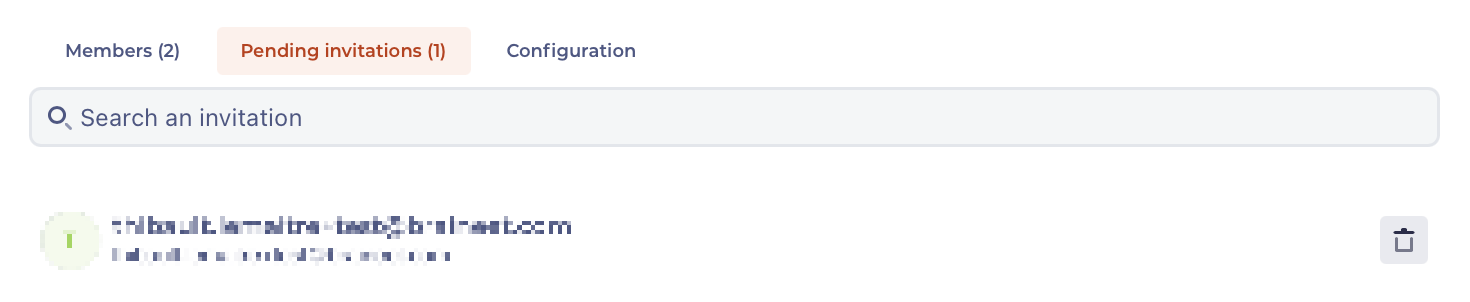
Reviewing pending invitations View List Details:
- From the list view, you can see the current list members, check the list of invitees who are yet to join your list after being sent an invite, or review the settings of your list.
- Configure List Settings:
- Use the configuration tab to rename your list or convert it into a dynamic list.
Managing Dynamic Lists
- Set Up Criteria:
- When creating a dynamic list, your first step is to set up the criteria used to determine which members can be added to the list and which will not have access.
- Criteria can be based on email address domains or full email addresses.

Note about SSO & Dynamic Lists:
If your company uses Single Sign-On (SSO) to access the platform, and your IT department has a claim for different departments or business units, you should be able to define additional criteria for dynamic lists based on these claims. This integration allows for more granular control over list memberships.
Using Diffusion Lists
Once your Diffusion Lists are set up, you can use them to restrict read and write access to the following elements:
- Content Types: Control which groups can view or contribute to specific types of content.
- Challenges: Manage access to innovation challenges, ensuring only relevant groups can participate.
- Navigation (Left-Hand Side Menu): Customize the visibility of menu items based on group membership.
- Surveys: Restrict access to surveys to specific groups, ensuring targeted feedback.
- Articles: Control which groups can read or edit articles, maintaining information integrity.
By following these steps, you can effectively set up and manage Diffusion Lists to control access and ensure that the right users have access to the relevant content on your platform.